Getting Started with floww
On this page
Why floww Exists
Most tools treat AI as a smarter autocomplete — a faster way to write the same code, the same way, in the same environment. floww starts from a different premise: AI-assisted work is fundamentally non-linear. You explore approaches, abandon dead ends, branch into alternatives, and return to earlier states. A text editor and a chat window cannot represent that shape. A canvas can.
floww gives your work a place to live that reflects how AI-assisted work actually happens — spatially, visually, with history that branches rather than overwrites.
The design philosophy is direct: the tool should match the shape of the work, not force the work into the shape of the tool. Conversations with Claude are not linear files. Projects are not flat lists of tasks. The canvas accommodates this — it is a space for work that grows, explores, and evolves.
The Canvas
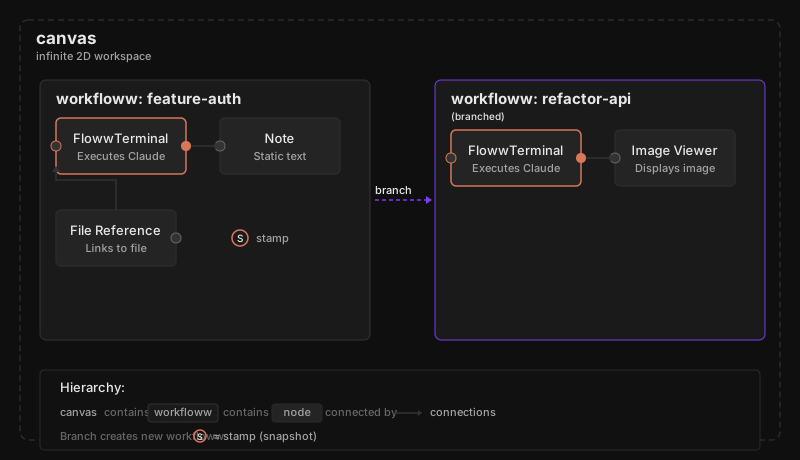
When you open a project in floww, you see a canvas (the spatial workspace where all your work lives). The canvas contains one or more workflowws (named sequences of connected nodes). Each node on a workfloww does a specific thing: a flowwLITE node sends instructions to Claude and captures the response. A Context node loads files into Claude’s working memory. A Viewer node shows output. Nodes are connected by edges that determine execution order.
Nothing on the canvas is preset. The nodes you create, the workflowws you name, the branches you open — these are all yours. floww provides the structure; you provide the intent.
The canvas is infinite in all directions. You can zoom out to see the shape of your entire project — all its workflowws, branches, and stamps at a glance — or zoom in to a single node to see the conversation it holds. Both views are the same canvas; only the perspective changes.
Your First Five Minutes
The first time you open floww with a project folder, the canvas is empty. You create a workfloww — give it a name that describes your intent (“api-auth,” “docs-pass,” “debugging-session”). You add a flowwLITE node and write your first instruction to Claude. Claude executes. The terminal node fills with the result.
When something meaningful happens — Claude completes a task, you reach a decision point, you want to save your progress — a stamp (a context-aware snapshot of your workfloww) is created. The stamp captures the canvas state, the conversation history, and a summary of what changed. It is a bookmark in the story of your project.
You do not need to configure stamps. You do not need to write a commit message. floww generates an intelligent summary by examining what changed and why. The stamp is available immediately — you can branch from it, restore to it, or simply use it as a reference point as the project continues.
Why It Works This Way
IDEs organize work around files. Terminals organize work around commands. floww organizes work around intent — what you are trying to accomplish and how it evolves. The canvas represents this intent spatially: related work is near each other, diverging approaches branch visually, completed work is stamped and settled. This is not a new way to edit code; it is a new way to manage the non-linear, exploratory process of working with AI. The code editing still happens in your editor. The file management still happens in your filesystem. floww manages the layer above — the shape, direction, and history of the work itself.
In Practice
A week into using floww. Your canvas has four workflowws: “api-redesign” (active, with 12 stamps), “auth-exploration” (branched from api-redesign at stamp 4, exploring a different auth approach), “docs-pass” (running in parallel, generating API documentation), and “cleanup” (archived, a dead end that taught you what not to do). Without opening a single file, the canvas tells the project’s story: the main work, the exploration, the parallel effort, and the abandoned attempt. Every stamp is a chapter marker. Every branch is a decision point you can revisit.
What Happens Next
As your project grows, so does the canvas. Stamps accumulate — each one a checkpoint you can return to. Workflowws branch when you explore alternatives. The planning model (structured hierarchy of milestones, phases, and plans) integrates through flowwCLI (the terminal companion) for larger projects that benefit from structured phase execution.
floww is designed to grow with the complexity of your work. A single flowwLITE on a simple canvas is a valid project. A canvas with twelve interconnected workflowws and a full planning hierarchy is also valid. The tool shapes itself to what you are building.
flowwCLI and the Planning Model
When your work grows beyond a single canvas session, flowwCLI (the terminal companion) provides a structured execution layer. The planning model organizes large projects into milestones, phases, and plans — each plan sized to fit within a single AI context window. flowwCLI and the desktop client share the same project files, so moving between them requires no export or sync.
For most users starting out, the canvas alone is sufficient. The planning model becomes valuable when you are building something over days or weeks, with multiple phases that need to be sequenced, parallelized, and tracked. It is not a requirement — it is an upgrade path for when the complexity demands it.
flowwCLI v1.0.0 lives in .claude/floww-cli/ within your project. It initializes with /floww:new-project, which creates the planning infrastructure directory. From that point, the CLI and the canvas work in concert: the CLI structures and executes the work, the canvas shows its shape and history.