flowwCLI
On this page
What is flowwCLI?
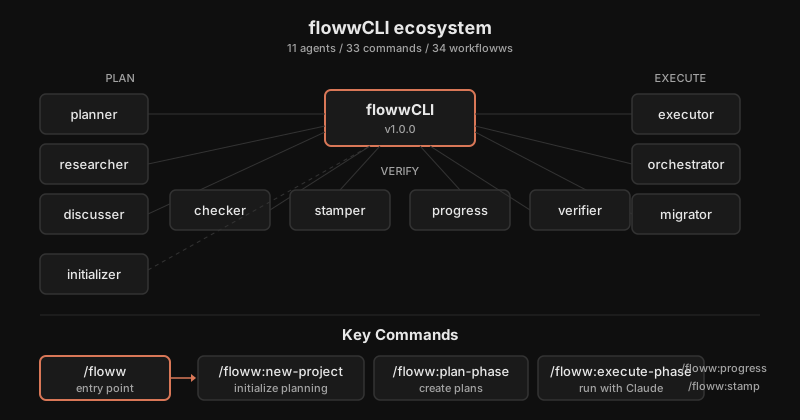
flowwCLI is the terminal-based interface to the same planning and execution system that powers the floww desktop client. It is a structured companion for Claude — 11 agents, 33 commands, 34 workflowws (named sequences of nodes on the canvas) that guide AI-assisted work from initial discussion through verification.
Everything starts with a single command: /floww. From there, flowwCLI detects the current project state and routes to the next action. There is no menu to navigate, no mode to select. You type /floww, and the system tells you what comes next based on what already exists.
flowwCLI v1.0.0 lives in .claude/floww-cli/ within a project directory. It does not install globally or modify system configuration. Each project carries its own copy, which means the CLI version is always in lockstep with the project’s planning artifacts.
Two Interfaces, One System
The terminal and the canvas see the same project state because they read the same files. There is no sync step, no export, no translation layer. When flowwCLI creates a plan, it writes a PLAN.md file that the desktop client can visualize. When the desktop client creates a stamp (a context-aware snapshot of your work), flowwCLI can read it and continue from that point.
The desktop client lets you see the shape of work — how nodes connect, where branches diverge, what the overall progress looks like. flowwCLI is what you are inside of when you are doing the work — planning phases, executing tasks, tracking completion.
Both exist because AI-assisted work benefits from both perspectives. Sometimes you need to see the forest. Sometimes you need to be in the trees.
Key Commands
The commands follow a lifecycle: initialize, plan, execute, verify, track.
/floww— The entry point. Detects project state, routes to the appropriate next step. If no project exists, suggests initialization. If plans are ready, suggests execution./floww:new-project— Initializes the planning infrastructure: creates.planning/withPROJECT.md,REQUIREMENTS.md,ROADMAP.md,STATE.md, andconfig.json./floww:plan-phase— Breaks a phase into executable plans. Each plan targets roughly 50% of a context window so Claude can complete it in a single session./floww:execute-phase— Runs plans with Claude. Handles deviations automatically (bugs, missing functionality, blockers) and stops for architectural decisions that need human judgment./floww:progress— Shows milestone, phase, and plan status. Where the project stands and what remains./floww:stamp— Creates a context-aware snapshot. The stamp examines the codebase and project state before sealing the snapshot, making it intelligent rather than mechanical.
Behind these commands, 11 agents handle specialized work: a planner that structures phases, a researcher that investigates codebases, an executor that runs plans, a checker that verifies results, a stamper that creates snapshots, and others that handle orchestration, migration, initialization, progress tracking, discussion, and verification.
Why It Works This Way
The desktop client shows the SHAPE of work — spatial, visual, explorable. flowwCLI does the WORK — sequential, focused, context-efficient. These are not competing interfaces; they are complementary lenses on the same project. The CLI exists because Claude executes best with focused, scoped instructions rather than panoramic visual context. When you run /floww:execute-phase, the executor agent does not need to see the whole canvas. It needs the plan file, the task list, and the verification criteria. The CLI delivers exactly that: tight context, clear instructions, sequential execution. The desktop client then shows you what the CLI produced — the canvas updated, the stamps sealed, the branches visible as spatial history.
In Practice
You have a phase with three plans. You run /floww:execute-phase 10 from the terminal.
The executor agent reads Plan 01, creates three components and four diagrams, writes
a summary. Then it picks up Plan 02, reads the articles, adds new sections, converts
diagram references. Each plan executes in focused isolation — the agent sees only
what it needs. Meanwhile, on the desktop canvas, the project’s workfloww nodes update
to reflect the new files. The CLI did the work. The canvas shows the shape of what was built.